Swing Edge app tour
How to move around the app — menus, scanners, tools, and where data comes from.
Page screenshot
Numbered markers highlight areas described in the steps below (desktop layout).
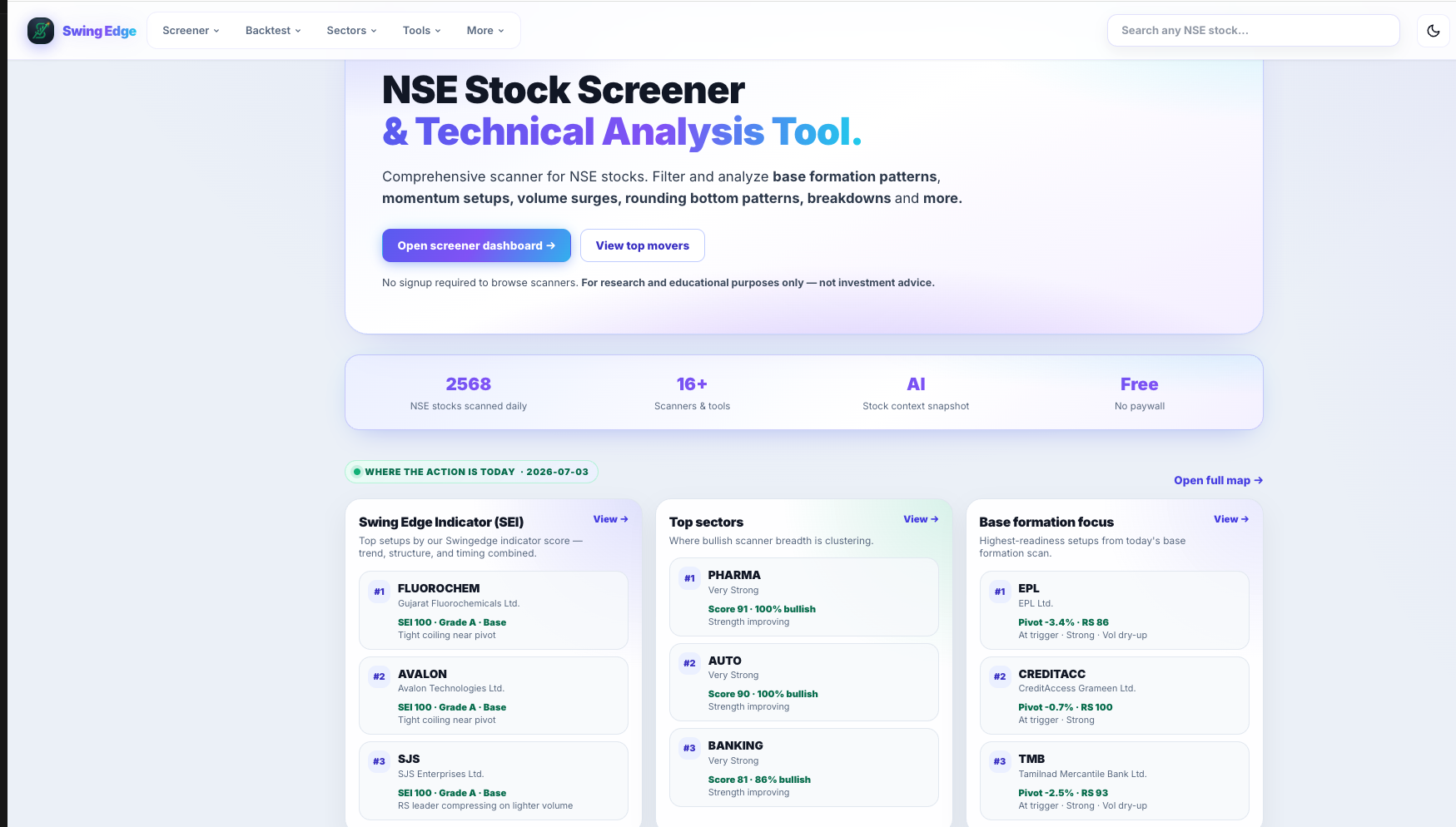
- Top menu
- Stock search
- Open screener dashboard
- SEI leaders column
- Base Formation focus
Screenshot coming soon
Add desktop.png under static/tutorials/app-tour/
Step-by-step
-
Home page
The home page links to all scanners, daily screens, boards, and tools. Each card opens a page that uses the latest scan data.
-
Top menu
Use Screener, Backtest, Sectors, Tools, Tutorials, and More. On desktop the left sidebar matches these groups. On mobile, open the menu icon.
-
Stock search
Search any NSE symbol in the header. You land on the stock page with scan tags, scores, and chart links when we have data.
-
Scanner pages
Each scanner shows filters at the top and result cards below. Cards open the stock page. The star saves to your watchlist when you are signed in.
-
Free vs signed in
Without an account you see a short preview of results. Sign in free to see full lists, watchlists, My Terminal, and saved plans.
-
Tutorials vs Learn
Tutorials (here) explain how pages work. Learn (under More) covers trading concepts in more depth.
Detailed reference
When data updates
- Scan lists usually refresh after market close (~4:30 PM IST).
- Open a scanner to see the latest run date on the page.
- Use sector maps and stock pages for extra context on any symbol.
Open in the app
FAQ
What does the App tour tutorial cover?
How to move around the app — menus, scanners, tools, and where data comes from.
Is the App tour tutorial investment advice?
No. Swing Edge tutorials explain scan data and app features for your own research. They do not recommend buying, selling, or holding any security.
How do I get started with App tour on Swing Edge?
Home page: The home page links to all scanners, daily screens, boards, and tools. Each card opens a page that uses the latest scan data.