Custom Scanner page
Build your own screen on the latest research snapshot — field groups, operators, and saved presets.
Page screenshot
Numbered markers highlight areas described in the steps below (desktop layout).
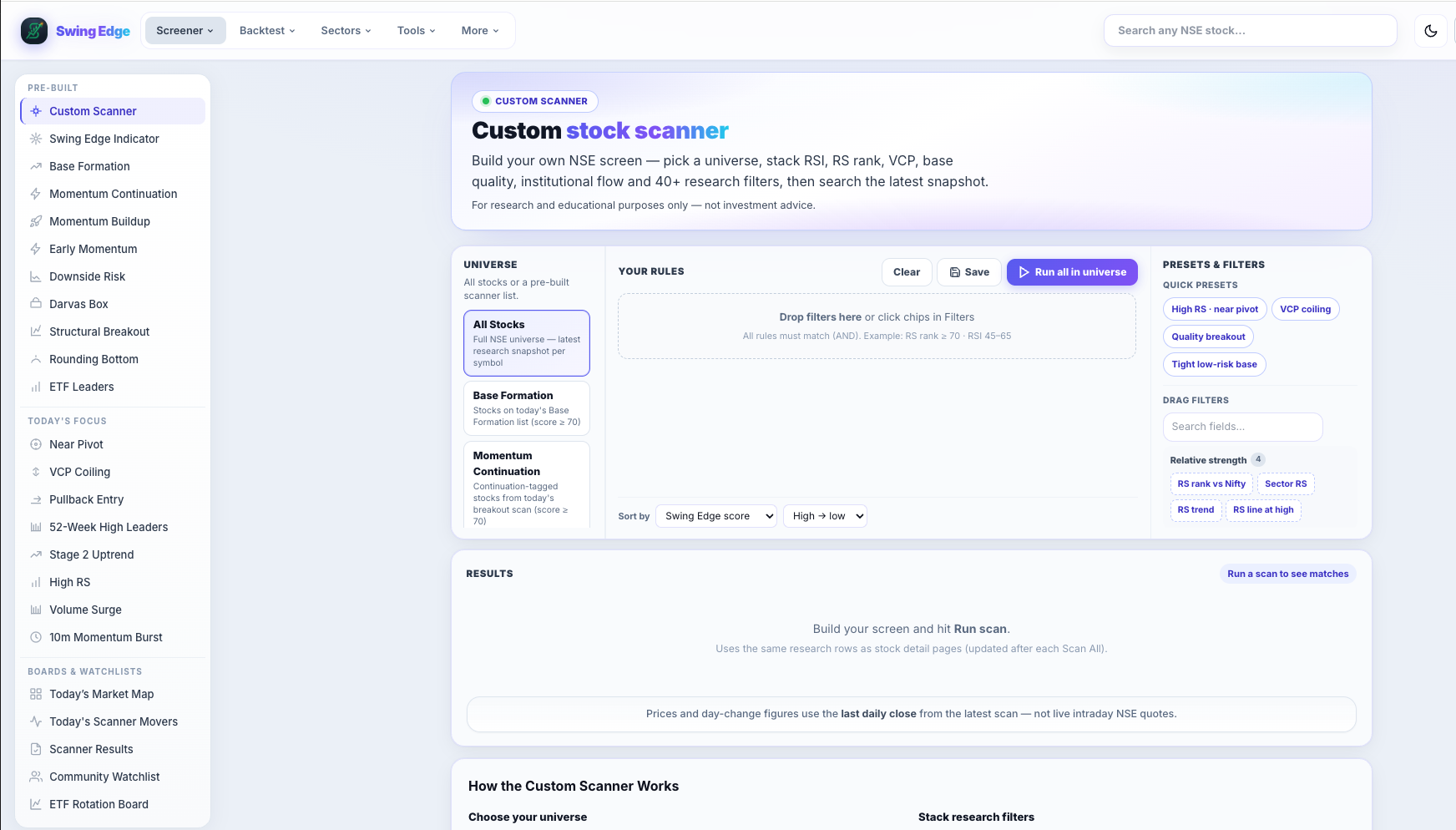
- Custom Scanner (sidebar)
- Universe — All Stocks
- Rules drop zone
- Run all in universe
- Filter chips library
Screenshot coming soon
Add desktop.png under static/tutorials/custom-scanner/
Step-by-step
-
Universe picker
Choose which saved list to scan within: All Stocks, Base Formation, Momentum Continuation, Momentum Buildup, Downside Risk, or pattern universes. You filter an existing snapshot, not live market data.
-
Field groups
Expand Score, Relative strength, Momentum & trend, Base / VCP, Volume, Risk, and other groups. Each field has min/max or dropdown operators.
-
Common fields
RS rank, RSI, ADX, 10d/20d gain %, Weinstein stage, base depth, pivot distance, Vol Q bins, Fail risk, and more — same columns as stock detail pages.
-
Run scan
Hit Run scan to apply filters client-side on the loaded snapshot. Results paginate in table or card view.
-
Results table
Symbol, score, RS, RSI, pivot %, signal, and link to stock page. Export is not a broker order — research only.
-
Saved presets
Signed-in users save named filter sets and reload them later. Presets store your rules, not auto-trades.
-
Data freshness
Results refresh when nightly Scan All completes — same timing as other scanners (~post market close IST).
Detailed reference
Operators
- ≥ / ≤ — numeric min or max (e.g. RS rank ≥ 70).
- Equals — enum picks like Stage 2 or RS trend Leading.
- Is true — boolean flags like stage2 or rs_line_at_high.
Universe vs filter
Universe limits which symbols are loaded (e.g. only Base Formation names). Filters then cut that set by your field rules.
Open in the app
FAQ
What does the Custom Scanner tutorial cover?
Build your own screen on the latest research snapshot — field groups, operators, and saved presets.
Is the Custom Scanner tutorial investment advice?
No. Swing Edge tutorials explain scan data and app features for your own research. They do not recommend buying, selling, or holding any security.
How do I get started with Custom Scanner on Swing Edge?
Universe picker: Choose which saved list to scan within: All Stocks, Base Formation, Momentum Continuation, Momentum Buildup, Downside Risk, or pattern universes. You filter an existing snapshot, not live market data.