My Watchlist page
Your saved symbols with scan snapshots, filters, and private notes.
Page screenshot
Numbered markers highlight areas described in the steps below (desktop layout).
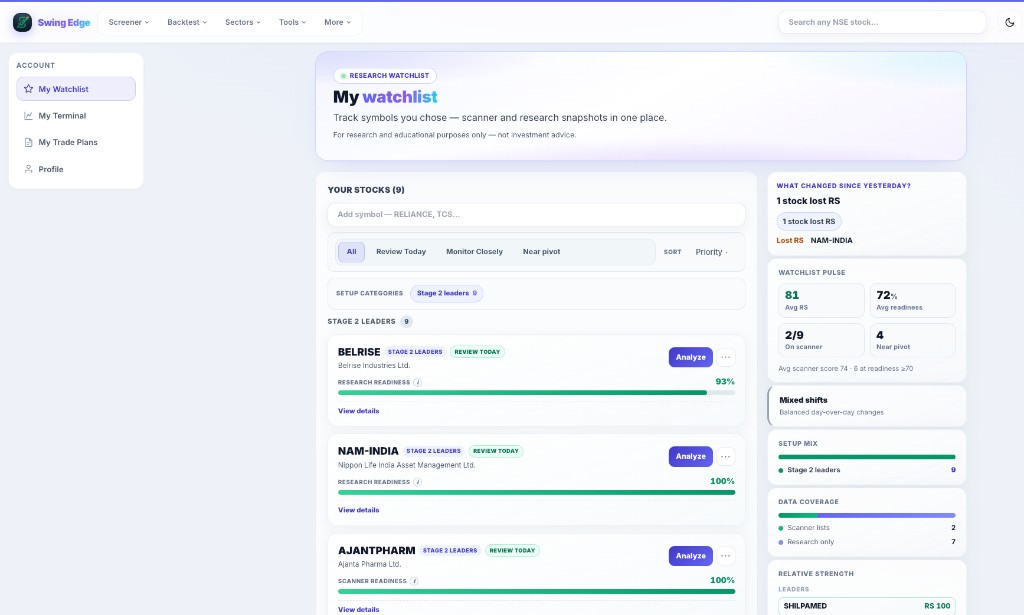
- My Watchlist (sidebar)
- Add symbol search
- Filter pills
- Readiness bar
- Watchlist pulse
Screenshot coming soon
Add desktop.png under static/tutorials/my-watchlist/
Step-by-step
-
Sign in required
My Watchlist is only for logged-in users. It stores symbols you chose — not a list picked by Swing Edge.
-
Add symbols
Tap the star on a scanner card or stock page, or search on this page to add a ticker. There is a limit on how many you can save at once.
-
Filter pills
All shows everything. Review Today and Monitor Closely match action labels on each card. Near pivot keeps rows close to the scan pivot.
-
Sort menu
Sort by Priority, Readiness, Recent (when added), or Sector. This only changes order on your screen.
-
Stock cards
Each card shows the symbol, setup group, readiness bar, and scanner notes. Expand View details for your private notes and today’s scan lines.
-
Right panel
What changed since yesterday summarizes scan moves across your list. Watchlist pulse shows simple averages — context only.
-
Remove a symbol
Open the ⋯ menu on a card and choose Remove from watchlist.
Detailed reference
Setup categories
When the scan groups your symbols (for example base vs breakout), chips at the top jump to each section. Groups come from scanner tags, not from us ranking picks.
Readiness bar
Visual blend of pivot proximity, score, and risk on the card — higher fill means closer/stronger in the model’s sort keys.
Review Today / Monitor Closely
Action labels derived from scan fields — filter pills on this page match these labels. Your private workflow hints, not alerts from us.
Watchlist pulse
Simple averages across your saved symbols (scores, RS, etc.) — context panel only.
Open in the app
FAQ
What does the My Watchlist tutorial cover?
Your saved symbols with scan snapshots, filters, and private notes.
Is the My Watchlist tutorial investment advice?
No. Swing Edge tutorials explain scan data and app features for your own research. They do not recommend buying, selling, or holding any security.
How do I get started with My Watchlist on Swing Edge?
Sign in required: My Watchlist is only for logged-in users. It stores symbols you chose — not a list picked by Swing Edge.